Claude Meetings: how it works, what it costs and how it compares
By Shubhranshu, creator of claudeagents · Last reviewed
Claude Meetings is a beta feature from Anthropic that lets Claude join a video call as a visible participant. It follows the conversation, answers questions in the meeting chat, writes the notes and action items, and can start real work, such as drafting a document or building a whiteboard, while people are still talking.
At launch it works with Google Meet only, on Claude Team and Enterprise plans. That one fact decides whether it fits you, so this guide covers it first. Then it goes through how to turn it on, what Claude records, who can see it, what it costs, and a line-by-line comparison with the best AI meeting tools: Otter, Fireflies, Fathom, and the AI built into Google Meet, Zoom and Microsoft Teams.
Everything here comes from Anthropic’s announcement and Help Center and from each competitor’s own pages, checked on 14 November 2026. Beta features change quickly, so check the linked sources before you decide. claudeagents is an independent project and is not affiliated with Anthropic.
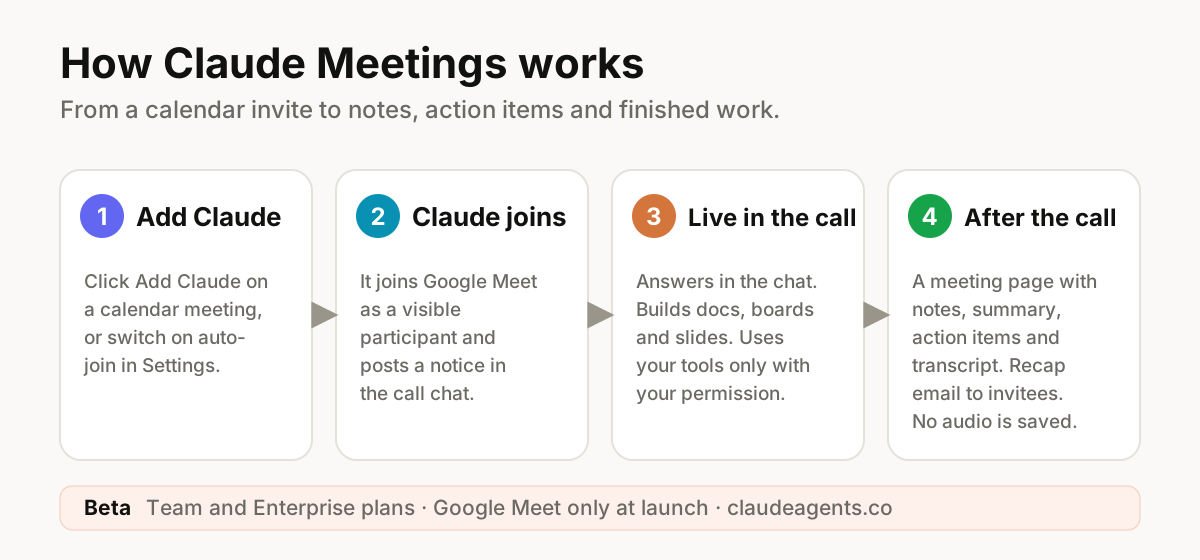
What is Claude Meetings?#
Claude Meetings is a feature of the Claude apps that adds Claude to a video call as a participant. It listens, keeps a live transcript, and acts as a teammate on the call. People can talk to it out loud or type to it in the meeting chat.
Most AI note-takers work after the fact: they record, transcribe and summarize. Claude Meetings adds a second job. As TechCrunch reported at launch, Anthropic’s stated goal is to let teams “turn discussions into actions in real time”, for example by drafting the plan being discussed or mapping a timeline on a whiteboard.
Claude is not hidden. It appears as a visible participant and posts a notice in the call chat when it joins, so everyone can see that the meeting is being transcribed.
What Claude does during the meeting#
While the call is running, Claude can do five things.
Anthropic’s example: a customer-event planning call
Anthropic describes a team planning a customer event. Someone asks Claude to start a planning doc, and Claude drafts it from the discussion so far while invitees edit it. When the budget comes up, Claude asks for approval before looking up last year’s event cost, posts the figure in the chat and compares it with the current plan.
When timelines come up, a teammate asks Claude for a whiteboard, and the team works on the schedule next to the doc. Before the call ends, Claude shares a recap.
- Answer questions. Say “Claude” out loud or type in the Meet chat. By default Claude replies in writing in the chat, and everyone on the call can read the answer.
- Build work as you talk. Anyone on the call can ask for a document, a whiteboard or slides. Each one is attached to the meeting page, and teammates can edit it while the call continues.
- Use your tools, with permission. Claude can use a person’s connected tools, for example to send a Slack message. It asks the first time, and a yes carries forward. When a request is spoken aloud, it asks every time to confirm who is speaking.
- Recap before you hang up. Before the call ends, someone can ask Claude to share a recap with the team.
- Show what it is doing. Claude’s tile in Meet is live and shows its current state. You can ask it to stop listening, or pause it from the meeting page.
What you get after the call#
Every meeting gets its own page in Claude. It is where the notes, the transcript and everything Claude created live, and it is the main reason to use the feature instead of a plain recording.
- Notes, summary and action items. Written by Claude, so attendees don’t have to.
- A full transcript and screen descriptions. Claude does not save the audio.
- Documents, whiteboards and slides created during the call, ready to keep editing.
- A recap email. Organization members on the invite get an email with a link to the meeting page.
- A calendar view. The Meetings calendar in Claude shows past and upcoming meetings.
- Ask about it later. In a normal Claude chat, you can ask about past meetings you have access to.
Members of your organization who were on the invite can view the page, edit what Claude created and share it inside the organization. Claude can stay on a call for up to eight hours and warns before it leaves.
Who can use it, and what it costs#
Claude Meetings is in beta and is rolling out on Team and Enterprise plans, in Claude and Claude Desktop. The defaults differ by plan:
- Team: on by default. An owner can turn it off.
- Enterprise: off by default. An owner turns it on for the whole organization or for specific custom roles.
- Not available (beta): organizations that use zero data retention (ZDR), a HIPAA-ready configuration or customer-managed encryption keys (CMEK).
- Before anyone can connect: an owner must enable Google Calendar for the organization.
On cost, Anthropic’s Help Center says notes, transcripts and answers that don’t use connected tools are included on Team and Enterprise plans. Docs and whiteboards created in meetings are free through 10 February 2027. Answers that use connected tools count toward the user’s own usage and can lead to charges for the organization.
The pages we checked don’t say what happens to artifact pricing after 10 February 2027. For seat prices, see Anthropic’s pricing page.
How to set up Claude Meetings#
The steps below follow Anthropic’s Help Center. Owners do the first three, and each person does the rest.
- Check your plan. You need Claude Team or Enterprise, and your organization must not be in an excluded category (ZDR, HIPAA-ready or CMEK).
- Owner: switch it on. Open Organization settings, then Products, then Claude Meetings (beta). Choose off, on for roles that include Meetings, or on for everyone.
- Owner: set the guardrails. On the same page, decide whether meetings with outside guests are allowed and whether Claude may use members’ connected tools during meetings. Then enable Google Calendar for the organization.
- Connect your calendar. Open Meetings in Claude and connect Google Calendar.
- Add Claude to a meeting. Pick a meeting and click Add Claude. Or turn on auto-join at Settings, then Capabilities, then Meetings, then Auto-join, and choose all meetings or all meetings except one-on-ones. Owners can’t set auto-join for other people.
- Tell your attendees. Anthropic recommends confirming that everyone is happy to be transcribed before you add Claude or turn on auto-join.
- Run the call. Claude usually joins without asking. If it asks, the host can admit it. Talk to it by saying “Claude” or by typing in the Meet chat.
- Review afterwards. Open the meeting page for the notes, action items, transcript and anything Claude built.
If the host declines Claude, it won’t try again on that call unless someone adds it again. To remove it, ask it to leave or choose Remove Claude on the meeting page.
Privacy, consent and outside guests#
Because Claude is transcribing a conversation, privacy is the part to read twice. These are the facts from Anthropic’s documentation.
- What is saved: a transcript, a summary and screen descriptions. Not audio.
- What others see: answers Claude posts in the Meet chat are visible to everyone on the call. The chat on the meeting page is internal, so outside guests can’t see it.
- Connected tools: Claude uses each person’s own connections and asks permission first.
- Outside guests, default: Claude stays out of a call if someone from outside the organization is invited, and it leaves if one joins partway, including another company’s notetaker bot.
- Outside guests, when allowed: Claude listens and takes notes, posts its notice in the chat and does not reply there. Guests’ speech is included in the notes and transcript, but guests can’t open the meeting page or receive the recap email.
- Who controls outside guests: on Team, allowed by default and an owner can turn it off. On Enterprise, an owner must allow it first. Each user also has a “Meetings with external guests” setting.
This is not legal advice, but a few habits keep you safe. Tell people before you transcribe them. Check the recording and consent rules where your attendees are, since they vary by country and state. And decide how long your team keeps meeting pages, because the Help Center article we read doesn’t describe retention periods or how to delete a meeting’s data.
Limits to know before you rely on it#
- Google Meet only. Anthropic says more video platforms are coming but doesn’t name them. Zoom and Microsoft Teams are not confirmed.
- Beta. Expect changes, and expect that some features are limited.
- Some organizations are excluded. ZDR, HIPAA-ready and CMEK setups can’t use it during the beta.
- Spoken tool requests need confirmation each time, so they are slower than typed ones.
- Chat answers are public to the call. Don’t ask Claude something in the chat that you wouldn’t say out loud.
- Language support isn’t stated in the documents we checked.
- No audio is kept, so you can’t replay the call from Claude. The transcript is your record.
Anthropic also says transcript export is coming soon, with named partners Gong, Attention, Granola, Fireflies.ai, Otter and Plaud, so teams can send transcripts to the tools they already use.
Claude Meetings vs the best AI meeting tools#
The tables below compare Claude Meetings with six popular options. We used only what each vendor states on its own official pages, checked on 14 November 2026, and wrote “Not listed” where a page is silent. Prices change often, so treat them as a guide and confirm on the vendor’s site.
First, the standalone AI notetakers. These work across several meeting apps and are the closest alternatives if you are not on Google Meet.
| Claude Meetings | Otter | Fireflies | Fathom | |
|---|---|---|---|---|
| Meeting apps | Google Meet only (beta) | Zoom, Microsoft Teams, Google Meet | Zoom, Google Meet, Microsoft Teams (10+ listed), plus uploads | Google Meet, Zoom, Microsoft Teams |
| How it joins | Visible participant, posts a notice in the chat | Meeting assistant joins to write and share notes | Bot, or no bot via a Chrome extension. Also desktop and mobile apps | Bot or bot-free (bot-free is a Mac beta) |
| Ask questions | Live, by voice or in the call chat | AI Chat within and across meetings | AskFred assistant | Ask Fathom (limited use on some plans) |
| Builds docs or whiteboards | Yes: docs, whiteboards and slides during the call | Not listed | Not listed | Not listed |
| Outputs | Notes, summary, action items, transcript, screen descriptions. No audio saved | Transcripts and notes, plus AI workflows | Summaries, transcripts, topics and task detection, sentiment, talk-time analytics | Transcripts, instant summaries, action items that sync to Slack, Salesforce, HubSpot, Notion and Asana |
| Languages | Not stated | English, Spanish, French, German, Japanese, Chinese | English, Spanish, French, Portuguese, Italian, plus 100+ in beta | Not stated |
| Free option | None. Needs a Team or Enterprise plan | Basic: 300 min a month, 30-minute meetings | Free plan available | Free: unlimited recordings and transcripts, instant AI summaries |
| Paid price per user | Included with a Team or Enterprise seat (see Anthropic’s pricing) | Pro $8.33 a month billed annually ($16.99 monthly). Business $19.99 ($30 monthly) | Pro $10 billed annually ($18 monthly). Business $19 ($29 monthly) | Premium $16 billed annually ($20 monthly). Team $15 ($19). Business $25 ($34) |
| Integrations | Connected tools in the call, such as Slack. Transcript export to Gong, Otter, Fireflies and more is coming | Zapier, Salesforce and HubSpot on paid plans. Otter MCP server | App and CRM integrations on paid plans, API, Zapier | Claude and ChatGPT, Zapier, Make, Slack, public API and MCP |
| Security claims | Owner controls. Not for ZDR, HIPAA-ready or CMEK organizations in the beta | Not listed on its pricing page | SOC 2 Type II, GDPR, ISO 42001. HIPAA-ready with a BAA on Enterprise. States it does not train on meeting data | SOC 2 Type II, GDPR and HIPAA compliance claimed. SSO and SCIM |
“Not listed” means the vendor’s pricing or product page doesn’t mention it. The product may still offer it. Fireflies’ prices come from its own pricing guide, and its free-plan limits are described differently in different places, so confirm on its live pricing page. Sources are listed at the end of this page.
Next, the AI that is already built into the meeting app you may be paying for. If your company lives in Google Workspace, Zoom or Microsoft 365, this is often the zero-setup option.
Claude Meetings vs the AI built into your meeting app#
| Claude Meetings | Gemini in Google Meet | Zoom (ZoomMate) | Microsoft Copilot in Teams | |
|---|---|---|---|---|
| Works in | Google Meet | Google Meet, and in-person or on-the-go meetings | Zoom meetings. Notes also work on third-party platforms (not named) | Microsoft Teams meetings |
| What you need | Claude Team or Enterprise plan | An eligible Google Workspace edition or a Google AI plan (the organizer needs it) | A limited free tier with Workplace Basic. Full features need a paid plan | Teams Premium or a Microsoft Copilot license (for intelligent recap) |
| Notes output | Notes, summary, action items, transcript, screen descriptions | A Google Doc: Quick notes (summary, action items) and Full notes (longer summary, decisions, details) | AI note-taking and meeting summaries. Custom summary templates on paid plans | Summary of key points and suggested action items |
| Ask during the meeting | Yes, by voice or chat | A “summary so far” for people who join late | In-meeting questions (3 hosted meetings a month on the free tier) | Yes, during or after. Offers a catch-up if you join more than 5 minutes late |
| Does extra work | Builds docs, whiteboards and slides. Uses connected tools | Not listed | Paid tier: automatic post-meeting deliverables | Longer answers can open in Word, and tables in Excel |
| Outside guests | Team: allowed by default. Enterprise: must be allowed. Claude doesn’t reply in the chat | Not listed. An admin may require consent before use | Not listed | Doesn’t work in meetings hosted outside your organization |
| Languages | Not stated | English, French, German, Italian, Japanese, Korean, Portuguese, Spanish (one per meeting) | Not listed | Not listed |
| Notable limits | Beta. Google Meet only. Excluded: ZDR, HIPAA-ready, CMEK | Best for meetings from 15 minutes up to 8 hours | Free tier: 3 uses a month. Paid: 2,200 AI credits per user a month | Needs live transcription to prompt after the meeting. Some recurring-meeting history can be lost |
Zoom’s current product page calls its assistant ZoomMate. Zoom doesn’t show a dollar price in the text we could read, so none is listed here.
Which one should you choose?#
There is no single best tool. The right choice depends on where you meet and what you need the tool to do.
- You use Google Meet and Claude Team or Enterprise, and want finished work, not only notes: try Claude Meetings. It is the only tool above that builds documents and whiteboards live and uses your connected tools during the call.
- You meet on Zoom or Teams: Claude Meetings can’t join yet. Use Otter, Fireflies or Fathom, or the AI built into your platform.
- You want a free start: Fathom’s free plan lists unlimited recordings and transcripts, and Otter’s Basic plan gives 300 minutes a month. Gemini notes are included if your Workspace edition qualifies.
- You need strict compliance: Claude Meetings is off the table during the beta for ZDR, HIPAA-ready and CMEK organizations. Fireflies and Fathom both claim SOC 2 Type II and GDPR, and Fireflies lists HIPAA-ready with a BAA on Enterprise. Check the exact terms with the vendor.
- You run sales calls and need CRM sync or talk-time analytics: look at Fathom and Fireflies first. Fathom lists CRM sync, and Fireflies lists conversation analytics and CRM integrations.
- You live in Microsoft 365: Copilot in Teams needs a Teams Premium or Copilot license, and it doesn’t work in meetings hosted outside your organization.
You can also mix them. Many teams keep a notetaker for every platform and add Claude Meetings for the Google Meet calls where they want work done during the conversation.
Use Claude with other note-takers today with MCP#
If you are on Zoom or Teams, you don’t have to wait for Claude Meetings. Some notetakers publish connectors that let Claude read your meetings. Otter lists an MCP server on its pricing page, and Fathom lists Claude and ChatGPT integrations plus a public API and MCP. Anthropic also names Otter, Fireflies and Granola as partners for transcript export.
In Claude Code, you add a server with one command. Use the address from the vendor’s own documentation, and follow our MCP setup guide for scopes and safety.
# Add a note-taker's MCP server to Claude Code (use the URL from its docs)
claude mcp add --transport http meeting-notes https://example.com/mcp

# Then ask Claude Code to act on a meeting
claude "read yesterday's planning call and list the action items for engineering"
From there you can turn action items into tickets, pull requests or content. For repeatable jobs, give Claude Code subagents a narrow role, such as a triage agent that only reads meeting notes and writes tasks.
A consent checklist before you roll it out#
- Decide which meetings may use Claude, and which must never use it.
- Tell attendees in the invite that Claude will join and transcribe.
- Confirm that everyone on the call agrees before you turn on auto-join.
- Check the recording and consent laws where your attendees live.
- Decide whether outside guests are allowed, and set the owner switch to match.
- Choose who may connect tools to Claude in meetings.
- Ask Anthropic how long meeting pages are kept and how to delete one.
- Review the first few meeting pages together and fix anything Claude got wrong.
Frequently asked questions
What is Claude Meetings?
Claude Meetings is a beta feature that lets Claude join a Google Meet call as a visible participant. It takes notes and action items, answers questions in the meeting chat, and can build documents or whiteboards during the call.
Does Claude Meetings work with Zoom or Microsoft Teams?
Not yet. It works with Google Meet only at launch. Anthropic says other platforms are coming but doesn’t name them. For Zoom or Teams today, use an AI notetaker such as Otter, Fireflies or Fathom, or the AI built into the platform.
Is Claude Meetings free?
It is included on Claude Team and Enterprise plans. Notes, transcripts and answers that don’t use connected tools are included, and docs and whiteboards made in meetings are free through 10 February 2027. There is no free-plan access during the beta. See Anthropic’s pricing page for seat prices.
Does Claude record the audio of my meeting?
No. Claude saves a transcript, a summary and screen descriptions, but it does not save audio.
Can Claude join meetings with people outside my company?
Only if your organization allows it. On Team it is allowed by default and an owner can turn it off. On Enterprise an owner must allow it first. When it is allowed, Claude takes notes and posts a notice but doesn’t reply in the chat, and guests can’t open the meeting page.
How do I turn on Claude Meetings?
An owner enables it under Organization settings, then Products, then Claude Meetings (beta), and enables Google Calendar. Then each person connects their calendar in Claude and clicks Add Claude on a meeting, or turns on auto-join in Settings.
Is Claude Meetings better than Otter or Fireflies?
They do different jobs. Otter and Fireflies work across Zoom, Teams and Google Meet and focus on notes, search and analytics. Claude Meetings works only on Google Meet for now, but it can build documents and whiteboards during the call and use your connected tools.
Can I use Claude with Otter, Fathom or Fireflies?
Yes, in some cases. Otter lists an MCP server and Fathom lists Claude integrations and MCP. Anthropic also says transcript export to Otter, Fireflies, Granola and others is coming. See our MCP setup guide.
Sources
- Anthropic: Introducing Claude Meetings (claude.com)
- Claude Help Center: Claude Meetings (support.claude.com)
- TechCrunch: Anthropic’s Claude Meetings launch coverage
- Otter pricing
- Fireflies pricing
- Fireflies pricing guide
- Fathom pricing
- Fathom
- Google Meet Help: Take notes for me
- Zoom AI assistant (ZoomMate) product page
- Microsoft Support: Copilot in Teams meetings