Claude Code desktop app: install it, use it, and how it compares to the terminal
By Shubhranshu, creator of claudeagents · Last reviewed
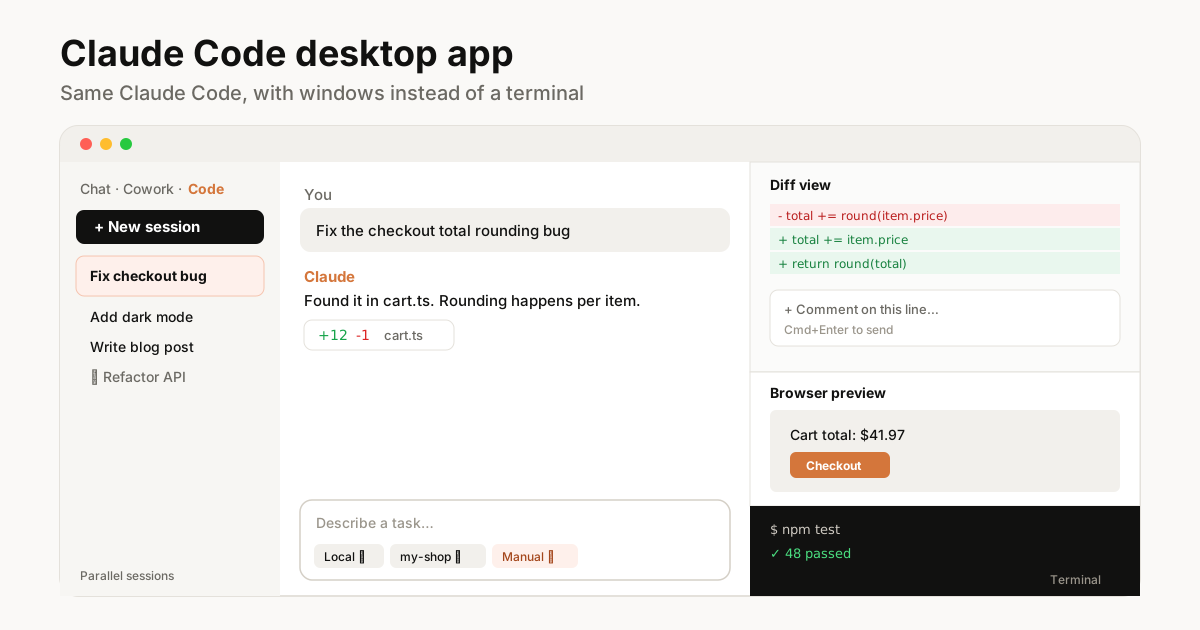
The Claude Code desktop app is the Code tab inside the Claude app for Mac, Windows and Linux. It gives you Claude Code with windows and buttons instead of a terminal: you pick a project folder, describe what you want, and review every change in a visual diff.
This guide covers installing it, your first session, permission modes, the features that only the app has (parallel sessions, a built-in browser, cloud sessions) and how it compares to the terminal and VS Code. Facts come from Anthropic's desktop documentation, checked on 16 November 2026. claudeagents is independent and not affiliated with Anthropic.
What the Claude Code desktop app is#
The desktop app is the Claude app for Mac, Windows and Linux. It has three parts: chat, Cowork for longer agent work, and the Code tab, which is Claude Code with a graphical interface. When people say "Claude Code desktop", they mean that Code tab.
Each conversation in the Code tab is a session with its own chat history and project folder. Claude reads and edits the files in that folder, runs commands and shows you every change in a diff view. You can run several sessions side by side from the sidebar.
It's the same Claude Code as the terminal version. The app includes it, so you don't need to install Node.js or the command-line tool to use the Code tab.
What you need#
- A paid Claude plan: Pro, Max, Ultra, Team or Enterprise. The free plan shows an upgrade prompt when you open the Code tab. See is Claude Code free? for your options.
- A supported computer: macOS (one universal build for Intel and Apple Silicon), Windows on x64 or ARM64, or Ubuntu and Debian Linux (in beta).
- A project folder you want Claude to work on. Start with a small project you know well.
- Git (recommended): needed for worktrees, which let sessions work on separate copies of your project. The GitHub CLI (
gh) is needed if you want the app to watch your pull requests.
Step 1: Download and install#
- Download the app from claude.com/download, or from the download links in Anthropic's desktop quickstart. Windows on ARM has its own installer.
- Mac: open the .dmg and drag Claude into Applications. Windows: run the installer. Linux: install with apt or the .deb package, following Claude Desktop on Linux.
- Open Claude from Applications (Mac), the Start menu (Windows) or your app launcher (Linux), and sign in with your Claude account.
Only download from claude.com or claude.ai. Copies on other sites can be modified.
Step 2: Open the Code tab#
Click Code at the top of the sidebar. If the tabs show only icons, hover over them to see their names. If something else appears:
- A prompt to upgrade: your plan doesn't include Claude Code. Subscribe to Pro or higher.
- A prompt to sign in online: finish the sign-in in your browser, then restart the app.
- A 403 error: an account or authentication problem. Sign out and in again, and see the troubleshooting section below.
Step 3: Start your first session#
- In the row under the prompt box, click the first control (the environment selector) and pick the top entry under Local.
- Click the folder control next to it, choose Open folder… and select your project.
- Pick a model with the model picker at the right end of the same row.
- Type a small, clear task and press Enter. Good first prompts:
Explain how this project is organized,Find a TODO comment and fix it, orCreate a CLAUDE.md with instructions for this codebase.
You can interrupt at any time: click stop, or just type a correction and press Enter to steer Claude without stopping it. Type @ and a file name to point Claude at a specific file.
Step 4: Choose a permission mode#
The permission mode decides how much Claude may do without asking. Change it in the row under the prompt box, or press Cmd+Shift+M (Mac) or Ctrl+Shift+M (Windows). Unlike the terminal, Shift+Tab doesn't switch modes in the app.
| Mode | What it does | Use it for |
|---|---|---|
| Manual | Asks before every file edit and command. You approve or reject each diff. | Your first week, and risky code |
| Accept edits | Applies file edits and simple file commands without asking. Asks before other commands. | Fast iteration on code you'll review |
| Plan | Reads your project and proposes a plan without editing anything. | Big or unclear changes, before any code |
| Auto | Works without routine prompts. A background check blocks risky actions. | Routine work you trust |
| Bypass permissions | No prompts at all. Off by default; you enable it in Settings. | Only inside a sandbox or virtual machine |
Mode names change between app versions. Cloud sessions offer Accept edits, Plan and Auto.
Our advice: start in Manual so you see what Claude does, use Plan before anything big, and keep your project in Git so every change can be undone.
Step 5: Review changes in the diff view#
When Claude edits files, a counter such as +12 -1 appears. Click it (or Changes in the title bar) to open the diff view and read every change file by file.
Hover over a line and click + to leave a comment, then press Cmd+Enter (Mac) or Ctrl+Enter (Windows) to send all your comments. Claude reads them and revises the code. Type /code-review to have Claude review its own changes first.
The features that make the desktop app worth it#
Everything the terminal can do, the app can do. These are the parts that are easier, or only possible, in the app.
Parallel sessions and worktrees
Start a new session with + New or Cmd+N / Ctrl+N, and switch with Ctrl+Tab. Turn on Worktree before a session starts and it works on its own copy of your project (in .claude/worktrees/), so two sessions never edit the same files. Commit before you archive a worktree session, because archiving can discard uncommitted changes.
Built-in browser preview
Press Cmd+Shift+B / Ctrl+Shift+B to open the Browser pane. Claude can start your dev server, open your app, take screenshots, click through it and check its own changes. A .claude/launch.json file in your project tells it how to start the server.
Terminal, files and a layout you arrange
Press Ctrl+` for a terminal in the session's folder. Drag the chat, diff, browser, terminal, file and plan panes into any layout, or pop them out into their own windows.
Side chats
Press Cmd+; / Ctrl+; (or type /btw) to ask a quick question using the session's context without adding it to the main conversation.
Cloud and SSH sessions
Pick Cloud in the environment selector to run a session on Anthropic's servers. It keeps going after you close the app, and you can check it at claude.ai/code or in the Claude mobile app. Pick SSH to work on a remote server; the app installs Claude Code there for you. On Windows you can also run sessions inside WSL 2.
Pull requests that fix themselves
With the GitHub CLI installed, the app watches the pull requests Claude opens. Auto-fix handles failing checks and new review comments, and Merge when ready turns on GitHub auto-merge.
Connectors, skills, plugins and schedules
Add tools like GitHub, Slack or Linear through + > Add connectors instead of editing MCP config files. Skills from ~/.claude/skills/ work as slash commands, and + > Add plugins installs plugins. Scheduled tasks run Claude on a timer, for example a code review every morning.
Desktop app vs terminal vs VS Code#
All three are the same Claude Code with the same account, CLAUDE.md, skills and settings. They differ in how you work with it.
| Desktop app | Terminal (CLI) | VS Code extension | |
|---|---|---|---|
| Best for | Visual work, beginners, many tasks at once | Developers who live in the terminal, scripts and automation | Working next to your code in the editor |
| Review changes | Diff view with line comments | Diffs in the terminal | Side-by-side diffs in the editor |
| Parallel sessions | Built in, with worktrees | Separate terminal windows | Several tabs |
| Preview your app | Built-in browser pane Claude can drive | Not built in | Not built in |
| Cloud sessions | Yes, from the same window | Through claude.ai/code on the web | Through claude.ai/code on the web |
| Install | One app download | One install command | One extension |
| Headless and CI use | No | Yes (claude -p) | No |
Settings in ~/.claude/settings.json apply to both the app and the terminal. The app sets a few environment variables itself, so a very long API timeout still needs the terminal.
You don't have to choose just one. Many people plan and review in the desktop app and use the terminal for quick commands. For the editor route, see Claude Code in VS Code; for the terminal, see the installation guide.
Keyboard shortcuts#
| Action | Mac | Windows |
|---|---|---|
| New session | Cmd+N | Ctrl+N |
| Next / previous session | Ctrl+Tab / Ctrl+Shift+Tab | Ctrl+Tab / Ctrl+Shift+Tab |
| Change permission mode | Cmd+Shift+M | Ctrl+Shift+M |
| Side chat | Cmd+; | Ctrl+; |
| Browser pane | Cmd+Shift+B | Ctrl+Shift+B |
| Terminal | Ctrl+` | Ctrl+` |
| Close focused pane | Cmd+\ | Ctrl+\ |
| Send diff comments | Cmd+Enter | Ctrl+Enter |
| Normal / thinking / verbose view | Ctrl+O | Ctrl+O |
| Open session in split view | Option+click | Alt+click |
Troubleshooting#
- The Code tab asks me to upgrade. Your plan doesn't include Claude Code. You need Pro, Max, Ultra, Team or Enterprise.
- 403 or sign-in errors in the Code tab. Sign out, sign back in, and restart the app. Check that your plan is active in your Claude account settings.
- I can't find the Code tab. Update the app to the latest version. If the sidebar shows only icons, hover over them to see the names.
- Worktree option missing or failing. Install Git and open a folder that's a Git repository.
- Pull request monitoring doesn't work. Install the GitHub CLI and run
gh auth loginonce. - Windows commands behave oddly. Install Git for Windows so Claude can use Git Bash, or run the session in WSL 2.
- A setting from settings.json is ignored. The app sets some environment variables itself, and those override the file in local sessions.
Frequently asked questions
Is there a Claude Code desktop app?
Yes. Claude Code is the Code tab in the Claude desktop app for macOS, Windows and Linux (beta). It's the same Claude Code as the terminal version, with a graphical interface.
Is the Claude Code desktop app free?
The app is free to download, but the Code tab needs a Pro, Max, Ultra, Team or Enterprise plan. The free Claude plan shows an upgrade prompt instead.
Do I need to install the Claude Code CLI to use the desktop app?
No. The desktop app includes Claude Code, so you don't need Node.js or the command-line tool. Install the CLI separately only if you also want to use Claude Code in a terminal.
Does the Claude Code desktop app work on Windows and Linux?
Yes. There are installers for Windows on x64 and ARM64, and a Linux beta for Ubuntu and Debian through apt or a .deb package. On Windows you can also run sessions inside WSL 2.
What's the difference between Claude Code desktop and Claude Desktop?
Claude Desktop is the whole app, with chat, Cowork and Code. Claude Code desktop usually means its Code tab, where Claude works on files in a project folder on your computer.
Is the desktop app better than the terminal?
Neither is better; they suit different work. The app is easier for beginners and has a diff view, browser preview and parallel sessions. The terminal is better for scripts, automation and CI. They share your account, CLAUDE.md and settings.
Can sessions keep running when I close the app?
Cloud sessions can. Choose Cloud in the environment selector and the session runs on Anthropic's servers, so you can check it later at claude.ai/code or in the Claude mobile app. Local sessions stop when the app closes.